Fake APK Files: Reading the Evidence Behind Every Installer

Repackaged installers can preserve original icons and familiar names, concealing modified content. Fake APK files imitate legitimate applications and contain altered code. Visual branding cannot establish application authenticity. Installer attributes vary between files and individual items. Reviewing multiple characteristics together provides a more dependable result than examining a single one.
| Aspect | Fake vs Consistent |
|---|---|
| Filename | Arbitrary vs documented pattern |
| App name | Imitated vs exact match |
| Icon | Copied vs original asset |
| Package name | Slightly altered vs registered identifier |
| Version label | Inconsistent vs chronological progression |
| Signature scheme | Different signer vs established certificate |
| Certificate owner | Unknown vs verified developer |
| File hash | Unmatched vs published digest |
| Requested permissions | Excessive vs functional scope |
| Special access | Unexplained vs documented requirements |
| Source page | Unverified vs developer channel |
| Update behavior | Conflict vs accepted installation |
Readers Who Need Installer Guidance
Android users download APK installers from various sources for different reasons, but they always need a consistent process to verify these files, as the same guidance applies each time.
Most readers encounter questions that ask them to verify installers.
- App users sideloading updates;
- People following promotional links;
- Individuals without full store access;
- Players installing betting apps;
- Testers evaluating early releases;
- Recipients of privately shared installers.
How APK Distribution Usually Works

Application installers deliver software to devices through several channels. Each channel relies on specific verification methods, which determine how the verification process continues.
| Channel | Installer type | Variant source | Notes |
|---|---|---|---|
| Official store listing | Store-signed APK release | Google Play distribution infrastructure | Version and signature managed centrally |
| Alt app store | Third-party signed package | Alternative repository signing process | Signing identity differs from Play |
| Developer website download | Developer-signed original APK | Direct developer distribution channel | Hash comparison uses published values |
| Third-party repository | Rehosted APK copy | Unknown upload and modification history | Provenance requires independent confirmation |
Comparing Official Installer Channels
Each download channel shares specific information about the developer’s identity and release data, with the level of detail varying between channels. Installer pages let consumers compare this information before they decide to install.
- Developer name visibility;
- Package name exposure;
- Version and date shown;
- Link to support pages;
- Presence of release notes;
- Availability of hashes;
- Certificate fingerprint publication;
- Update procedure documentation;
- Support contact information;
- Release chronology details.
Identifying The Claimed Developer
Names and icons shown in an APK are included as part of the file. They do not identify the developer responsible for the app. To verify who published it, users should look at multiple clues. Checking several details helps confirm authenticity more reliably than using just one sign.
- Displayed developer name;
- Linked website domain;
- Support contact channels;
- Package name ownership;
- Documented distribution source;
- Identity verification status.
Using Package Names For Checks
Package names distinguish each Android app and allow developers to identify their apps. When someone installs an app, the package name connects the app to the developer’s records and controls the app’s ability to receive updates.
| Package pattern | Implication |
|---|---|
| Exact documented name | Matches known application |
| Extra words added | Unofficial variation |
| Single letter change | Different app identity |
| Completely new root | Unrelated application |
Spotting Version Inconsistencies In APKs
The installer relies on version information to link to the correct release. Labels, codes, and publication dates must align with the details the developer assigns to each build. Discrepancies in labels, codes, and publication dates may indicate alteration or misrepresentation of the package. Visible signs show version problems.
- New label, old code;
- Older date than claimed;
- Unexpected downgrade attempt;
- Wrong supported Android level;
- Unusual file size gap;
- Missing release description.
How APK Signing Connects Releases
Every installable APK has a digital signature. This signature links the developer’s identity to the APK and connects the installer to updates. The way a developer uses signing keys affects whether users receive updates without problems.
| Signing aspect | Effect |
|---|---|
| Original developer key | Enables direct updates |
| Different signing key | Blocks simple upgrade |
| V2 plus scheme | Covers full contents |
| Store-managed key | Store delivers signature |
Comparing Certificate Fingerprints
Certificate fingerprints convert the signing certificate into digest values. Users can view these values to identify who signed various APK files. By comparing the values, users can confirm that releases are from the same developer.
- Run a certificate-printing tool on the downloaded APK file;
- Record the SHA-256 fingerprint displayed by the tool;
- Locate the official fingerprint in developer documentation or trusted records;
- Compare the two fingerprints for an exact character match;
- Treat any mismatch as a different signing identity.
Using File Hashes To Confirm Downloads
A file hash is a single, fixed-length string that represents the contents of a downloaded installer. If the hash matches, it confirms the downloaded file is identical to the one released by the developer.
- Find the hash and algorithm published by the developer for a specific installer;
- Download the APK file and save it without renaming where possible;
- Use a hashing tool to calculate the installer hash with the same algorithm;
- Compare the calculated hash with the documented value for equality;
- Store the hash with filename and version for later checks.
Reviewing Requested Permissions For Fit
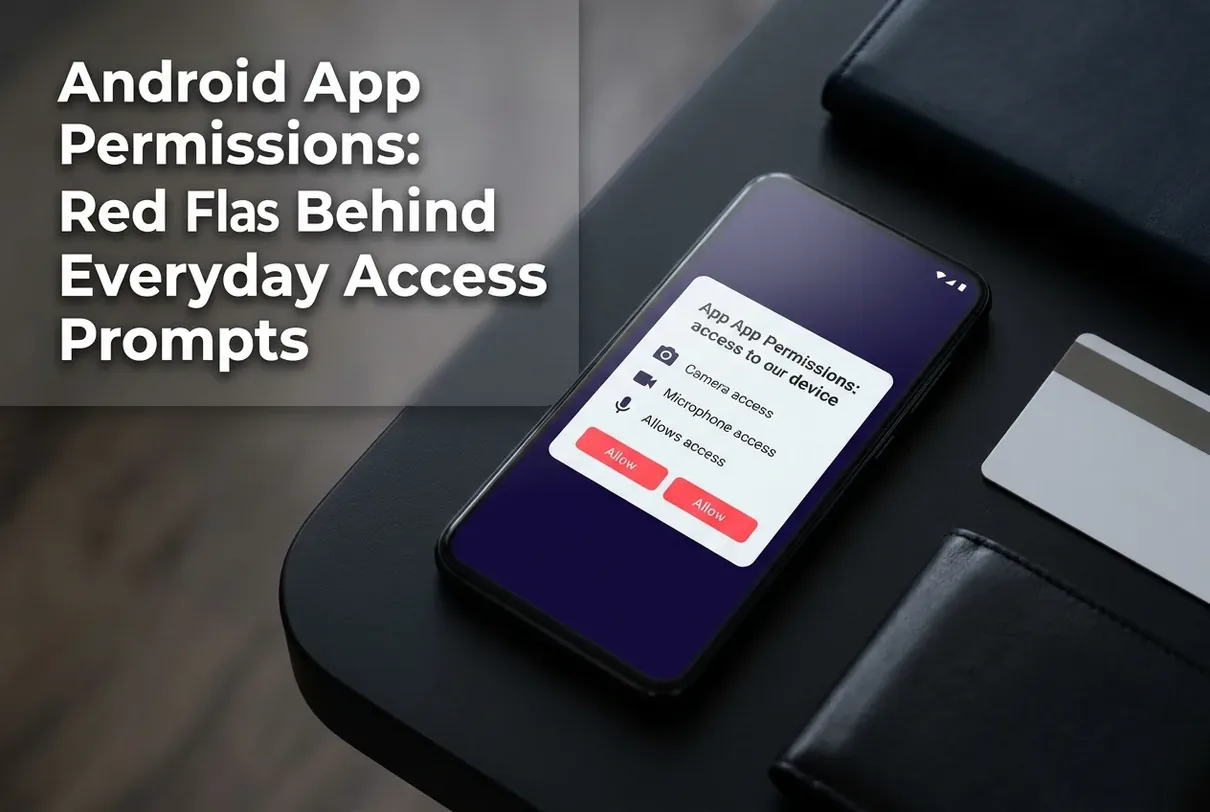
Permissions define access for Android applications on devices. Requested capabilities must match the application’s stated purpose. Significant mismatches indicate different behavior patterns.
Android apps ask for permissions based on what they do. Before users install an app, they should check if the permissions match the app’s functions.
- Flashlight versus SMS access;
- Document viewer versus contacts;
- Simple game versus call logs;
- Wallet app versus sensors;
- Streaming app versus SMS send;
- Browser versus location always.
Reviewing Special Android Access Types
Some controls provide more than standard runtime permission prompts. Certain controls may grant installed applications specific capabilities. When reviewing downloaded installers, consider the types of access individually.
- Accessibility service control;
- Device administrator privileges;
- Notification reading access;
- VPN service profiles;
- Overlay drawing rights;
- Unrestricted background battery use;
- Install unknown apps toggle.
What Play Protect Actually Checks
Play Protect scans apps before they are downloaded and examines installers during side-loading. Users must also verify the package name, version label, certificate fingerprint, file hash, and developer information.
| Aspect | Play Protect role |
|---|---|
| Store downloads | Scans at pre-delivery stage |
| Automatic scanning | Reviews installed application catalog |
| Side-loaded apps | Checks during external installation |
| Periodic review | Rechecks apps over time |
| Developer hashes | Separate from publisher documentation |
| Not replaced | Manual package comparison |
| User comparison | Still required independently |
| Still required | Certificate and hash verification |
How Play Integrity Identifies Official Apps
Play Integrity allows services to verify whether an app’s binary matches a specific version and has not been altered. Through its API, it returns verdict elements that indicate the app’s signing identity, its package identity, and the integrity status of the installed binary.
| Verdict element | Meaning |
|---|---|
| PLAY_RECOGNIZED flag | Official binary recognized |
| Certificate match check | Correct signing identity |
| Package match check | Correct application ID |
| Integrity failure | Code change detected |
Recognizing Installation And Update Conflicts
You might see messages about certificate issues or duplicate app names when you install an app on Android. The Package Manager checks the signing keys for each app. If the system finds a certificate mismatch, it blocks the update.
- Package already installed;
- Signature mismatch error;
- App not installed;
- Update not allowed;
- Different signer detected;
- Reinstall from known source.
Why Repackaged APKs Look Convincing
Modified installers can look like official releases, which may reassure users but also cause confusion. Although certificate inspection could show identity differences, users cannot access this data. Designers who alter the code can duplicate icons, labels, and descriptions.
Repackaged files often display certain signs. You can identify these signs with careful examination.
- Unchanged app icon;
- Same visible app name;
- Copied store description;
- Similar version label;
- Close but larger size;
- Lookalike promotional website.
Using Release Documentation For Comparison
Release notes link published information to downloadable installers, listing version, date, and features. Developers document these details in change logs, which users can compare with metadata contained in APK files.
- Locate the official release notes page for the claimed version;
- Confirm the version name and code listed match the installer values;
- Check that release dates align with file publication dates where possible;
- Match major feature changes with requested permissions or capabilities;
- Save a copy or capture of the notes for your records.
Accounting For Regional Release Differences
App availability changes depending on the region. Users should check the release details for their region before they compare installers.
| Regional factor | Comparison note |
|---|---|
| Country catalog | App absent from catalog |
| Rollout timing | Later local release |
| Language bundle | Different resources only |
| Config options | Minor behavior shifts |
Keeping Useful Verification Records
When consumers save records, they can see if they need to get installers again or send issues to developers. These details also help them check download attempts and find changes between update cycles.
- Capture the URL and date of each installer download page;
- Record the APK filename, package name, and version information together;
- Store developer-published hashes alongside calculated hashes;
- Save certificate fingerprints used for comparison;
- Note any conflict messages or scan outputs at install time.
Interpreting Scan And Tool Results
Hashes indicate the content of a file. Signatures verify cryptographic consistency. Store checks assess recognition of a file by distribution channels. Integrity APIs detect and identify binaries. Each tool examines specific details, and no single method can determine trustworthiness on its own. Users must review all reports together for complete verification.
- Hash match equals same file;
- Signature match equals same signer;
- Package match equals same app;
- Permissions fit equals expected use;
- Store listing aligns details;
- Integrity verdict confirms binary;
- Single success not enough.
Conclusion And Practical Takeaways
By combining these checks, users can compare results and identify what an APK installer is. The verification methods provide data points that help users spot inconsistencies between the package’s claims and its actual characteristics.
- Always confirm package name;
- Check version against notes;
- Compare signatures or fingerprints;
- Verify hashes against published values;
- Review permissions and access;
- Keep basic verification records.
FAQ
How To Quickly Check An APK
Review the package name shown in the installer and compare it to what appears in the documentation. Examine the developer name, version details, and the source page. Make sure this information matches the details provided by the publisher.
Handling An APK That Appears Altered After Installation
Compare the version number, permissions, and developer name of the application with records. Uninstall the app if discrepancies are noticed. Download the installer from a trusted source. Replace the application if any detail fails to match.
Related Post

Fake Betting Apps: Uncovering the Anatomy of Betting Scams
Fraudulent developers create fake betting apps that request deposits and collect personal information. These apps [...]